IgniteRemote - Frequently Asked Questions
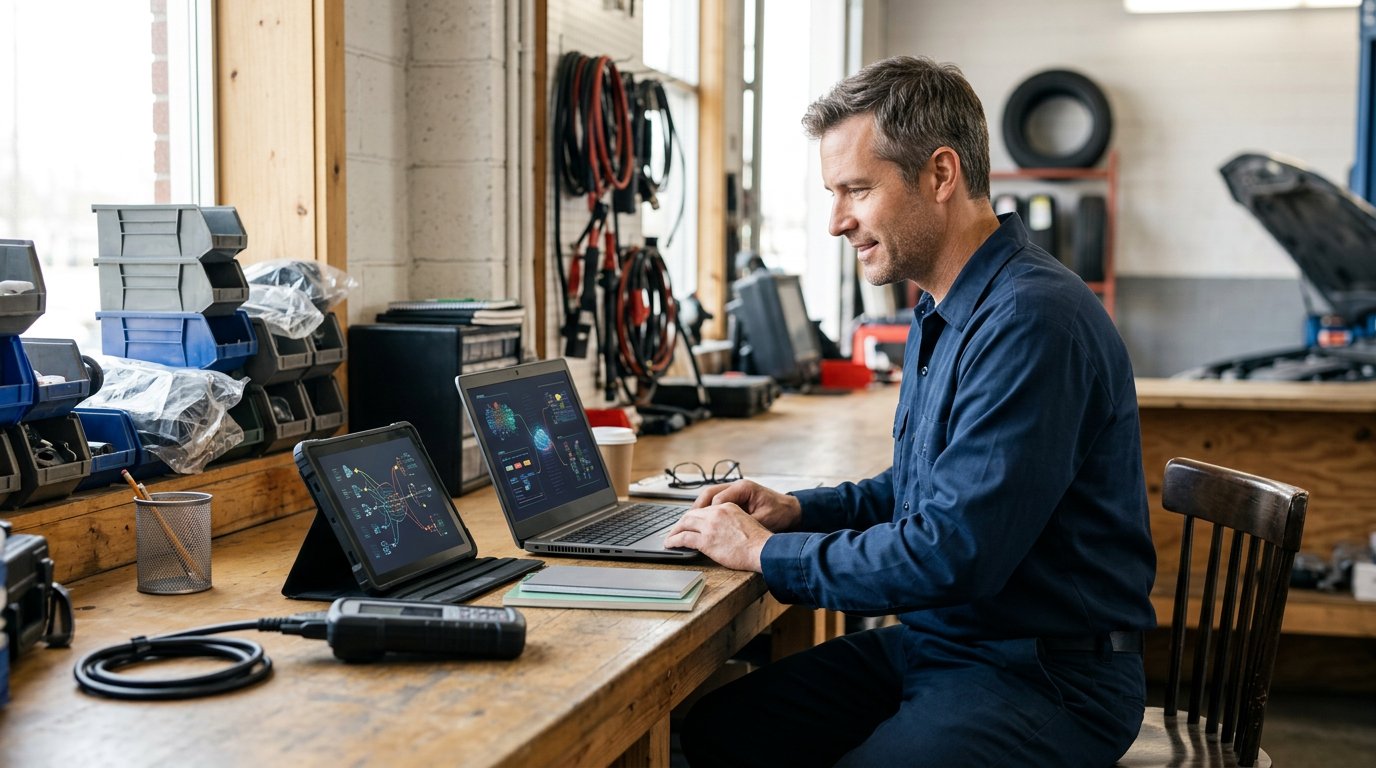
IgniteRemote frequently asked questions cover setup, pricing, hardware, security, and limitations for browser-based remote desktop and J2534 tool sharing…
IgniteRemote - Frequently Asked Questions
TL;DR: IgniteRemote sells browser-based remote desktop access and J2534 tool sharing built for automotive shops, starting at $9.90/month with no per-technician fees. The agent runs as a Windows service to handle UAC prompts and lock screens during remote sessions, and every plan includes session recording. Tool sharing measures the link quality before every module write and refuses programming when the connection or battery voltage isn't good enough. This FAQ answers the setup, pricing, hardware, security, and limitation questions we hear most.
What is IgniteRemote and who is it for?
IgniteRemote is remote desktop software with integrated J2534 pass-thru tool sharing, built specifically for auto repair shops, mobile locksmiths, fleet maintenance operations, and remote automotive technicians. You control enrolled Windows 10 or 11 diagnostic stations from any browser—laptop, tablet, or phone—with nothing to install on the controlling side.
The product line separates into three offerings sold individually or together: Remote Access (browser-based remote desktop with Admin Mode and session recording), J2534 Tool Sharing (network pass-thru for OEM diagnostic software), and Automotive Pro+ (which bundles both). Plans start at $9.90/month for the Solo tier, covering up to five computers and two simultaneous sessions, with a seven-day free trial on every plan.
IgniteRemote is designed for shops that need reliable access to diagnostic stations without driving across town, mobile techs who want an expert to program a module while they stay at the vehicle, and fleet operations managing multiple locations. The hybrid architecture—installed service-level agent on shop PCs, browser-based access on the technician's side—distinguishes it from consumer screen-sharing tools that cannot handle UAC prompts, lock screens, or J2534 device redirection.
You can read a detailed breakdown at IgniteRemote Pricing Explained.
How does pricing work?
IgniteRemote sells three separate product lines that add together rather than replacing each other. Remote Access comes in three tiers: Solo ($9.90/month for 5 computers and 2 concurrent sessions), Pro ($24.90/month for 25 computers and 5 sessions), and Automotive Pro+ ($49.90/month for 100 computers, 10 sessions, and J2534 tool sharing included).
J2534 Tool Sharing is also available standalone at $39.90/month for 25 computers and 5 sessions, intended for shops that already have remote desktop sorted or want tool sharing without the full automotive bundle. If you're already on Automotive Pro+, tool sharing is included—buying the standalone line as well means paying twice for the same capability.
There are no per-job fees, no per-technician metering, and no appointment with a vendor's technician. You use your own OEM subscription, your own technician does the work, and the plan price is the whole price. Every plan includes a seven-day free trial with a credit card required. Yearly billing saves two months; contact IgniteRemote to arrange annual terms.
All three product lines stack: if you hold Remote Access Pro and standalone Tool Sharing, your account gets the device and session allowances from both, plus every feature from both subscriptions. Canceling one line leaves the others untouched.
What equipment and software do I need?
The shop or field computer must run 64-bit Windows 10 or Windows 11. No other operating system—macOS, Linux, or older Windows versions—is supported for the agent. The controlling side uses any modern browser (Chrome, Safari, Edge, Firefox) on any platform, including iPhone and iPad running Safari.
For J2534 tool sharing, both the shop PC at the vehicle and the technician's PC running the OEM diagnostic software must have the IgniteRemote desktop app installed. Supported pass-thru tools include TOPDON RLink, Artidiag RLink X3, and Drew CarDAQ-Plus 3. The OEM software—Ford FDRS, GM Techline Connect, Chrysler wiTECH, Toyota Techstream, VW ODIS, BMW ISTA, JLR SDD—sees the shared interface as a local J2534 device.
Vehicles that require DoIP-only communication (Volvo 2016+, DoIP BMWs, Nissan CONSULT 4, Mercedes 206 or 223 chassis and newer) are explicitly not supported over tool sharing as of the current release. Setup requires no administrator rights for initial installation, but enabling tool sharing or Admin Mode does require an admin account to approve the elevated permissions.
The agent installer is 103 MB and ships with a SHA-256 checksum published on the downloads page for verification. Code signing is in development; Windows SmartScreen may warn on first run until that ships.
How does J2534 tool sharing actually work?
Both PCs run the IgniteRemote desktop app for Windows: the shop computer that the pass-thru tool plugs into, and the technician's computer running the OEM diagnostic software. The shop joins the session with a tool-sharing token—no account to set up, no administrator password entered on someone else's machine—and a tool connection is usually ready in 10 to 30 seconds.
The OEM application sees the remote J2534 interface in its device picker and works normally. Diagnostics, fault-code reading, live data streaming, and guided tests run over any connection, including mobile hotspots and LTE. Module programming has stricter requirements: before every write operation, the link is measured with ten probes, and programming is refused if the link stalls for more than a second, averages over 400 milliseconds round-trip, or resends more than 15 percent of its traffic.
A relayed connection is refused for programming no matter how fast it measures, because relay servers introduce unpredictable latency spikes even on fast links. Battery voltage is checked before every module write, and programming is refused below 11.0 volts or above 15.5 volts. These checks lower the risk of an interrupted write; no software can remove the risk entirely, but automatic refusal when conditions are poor is better than hoping the operator notices.
Every tool session is recorded in full and decoded: VINs, fault codes, part numbers, and each programming decision are logged automatically. The recording and metadata are available for dispute resolution, quality control, and training without manual transcription.
Can I program modules safely over the internet?
Programming a module over an internet link introduces packet loss, latency spikes, and connection interruptions that can brick a control unit if they occur mid-write. IgniteRemote measures the connection quality before every programming operation and refuses to proceed when the link or battery voltage is inadequate, but no software can eliminate the underlying risk that an unstable network or power interruption could interrupt a write.
Before each module write, ten probe packets measure whether the link stalls for more than a second, whether round-trip time averages over 400 milliseconds, or whether more than 15 percent of packets are retransmitted. If any condition fails, programming is blocked. Battery voltage must stay between 11.0 and 15.5 volts or the write is refused. A relayed connection is refused for programming regardless of measured speed, because relay servers introduce unpredictable jitter.
These checks lower risk but do not make remote programming risk-free. A high-quality direct wired or fiber connection between both endpoints, measured and verified before the write begins, is safer than a consumer broadband link with unknown upstream routing. The same physical risks—someone bumping the OBD connector, the battery charger failing, a utility interruption—apply whether the technician is local or remote.
The safest approach remains on-site programming with stable shop power and a known-good connection. Tool sharing is a calculated tradeoff: it avoids the cost and delay of travel, but it moves the work onto a link you do not fully control. Understand the residual risk and decide whether the tradeoff makes sense for your operation.
What security and recording features are included?
Every remote session is encrypted in transit with TLS. Screen content and input are relayed through IgniteRemote servers but never stored; session recordings are created only when you choose to start recording, not automatically on every connection. Role-based access control and a session audit log track who connected to which computer and when.
Admin Mode runs the agent as a Windows service from boot, allowing a remote technician to interact with UAC prompts, the lock screen, and other protected desktops that user-level remote tools cannot reach. An administrator on the local machine must explicitly enable Admin Mode; it does not activate automatically. Unattended access is configured per enrolled computer, with optional approval prompts at the remote machine for supervised connections.
Session recordings include screen capture and decoded telemetry when the session involves tool sharing: VINs, fault codes, part numbers, and programming steps are extracted automatically. AI-generated training steps can be created from any recording, turning a live session into written documentation without manual transcription. Recordings and decoded logs support dispute resolution, quality control, and onboarding new technicians.
The installer package includes a SHA-256 checksum published at igniteremote.com/downloads, allowing you to verify the file's integrity before installation. Multi-factor authentication, end-to-end encryption, automatic session reconnection after a network change, and SOC 2 certification are not documented on the site; do not assume these features are present, and contact IgniteRemote directly to confirm the current security posture if your compliance requirements depend on them.
How do I set up and enroll a computer?
Enrollment uses a setup code you create in the browser console and send to whoever is installing the agent. They run the installer, enter the code—no account credentials, no administrator password shared—and the computer appears in your device directory already named and ready. The installer itself requires no admin rights to run, though Admin Mode and tool sharing do require administrator approval after installation.
Download the IgniteRemote Agent installer from the downloads page, verify the SHA-256 checksum in PowerShell, and run the setup. Windows SmartScreen may warn that the publisher is unrecognized; code signing is in development but not yet shipped. After installation, sign in with your IgniteRemote account to activate the agent.
To control the enrolled machine, open the web console in any browser, sign in, pick the device from your directory, and connect. Nothing is installed on the controlling side—tablet, phone, or laptop all work the same. Quality presets range from Smooth to Ultra; choose the setting that matches your link quality. Multi-monitor support, clipboard sync, two-way file transfer, remote file browsing, and chat are included on every plan.
Admin Mode and tool-sharing permissions are switched on in the agent's system-tray interface after enrollment. Both require an administrator account on the local machine to authorize the elevated privileges; no remote technician can enable these features without local administrator consent.
What are the limitations I should know about?
IgniteRemote supports only 64-bit Windows 10 and Windows 11 for the agent; macOS, Linux, and older Windows versions are explicitly unsupported. The browser console works on any platform, but the machine being controlled must be Windows. J2534 tool sharing requires the desktop app on both ends—browser access is sufficient for remote desktop but not for sharing a pass-thru interface.
DoIP-only vehicles cannot be diagnosed or programmed over tool sharing: Volvo 2016 and newer, DoIP BMW models, Nissan CONSULT 4, and Mercedes 206/223 chassis and later are excluded. If the vehicle requires a DoIP connection rather than CAN or K-line over OBD-II, tool sharing will not work. J2534-based diagnostics and programming on older vehicles work as documented.
USB passthrough, USB-Only Mode, Flash-Safe, and Wake-on-LAN are in development but not available as of this writing; do not assume these features are present. Automatic session reconnection after a network change, reconnection timing, session-state buffering during a dropout, and adaptive quality adjustment are not documented on the site. If your workflow depends on any of these behaviors, contact IgniteRemote to confirm current capability before committing.
Remote programming over the internet always carries residual risk of an interrupted write, regardless of software safeguards. Tool sharing refuses programming when link quality or battery voltage is inadequate, but it cannot prevent physical interruptions—a knocked OBD cable, a failing battery charger, or a utility outage—that can occur whether the technician is local or remote. The risk is lower than unsupervised remote programming, but it is not zero.
Uptime guarantees and SLAs are not published. If your operation depends on 99.9% availability or contractual penalties for downtime, ask for those terms in writing before subscribing.
Where do I go from here?
Start a seven-day free trial on any plan at igniteremote.com/pricing; a credit card is required but you can cancel before billing begins. Install the agent on a shop diagnostic station, enroll it with a setup code, and test remote desktop from a browser on another device. If you need J2534 tool sharing, install the desktop app on both the shop PC and the technician's PC, connect a supported pass-thru tool, and verify that your OEM software sees the interface in its device picker.
Compare the feature set and pricing to generic remote-desktop tools at IgniteRemote vs TeamViewer for Automotive Shops and IgniteRemote vs AnyDesk if you're evaluating alternatives. Review the technical architecture of J2534 pass-thru remote sessions at J2534 Passthru Remote Sessions for a deeper explanation of how tool sharing works and what link conditions allow safe module programming.
If you manage multiple locations or mobile technicians, read Multi Location Auto Shop Remote Management for workflow examples. Security-conscious shops should review the Remote Access Security Checklist for Auto Shops to understand what protections are built in and what additional measures you need to implement yourself.
Contact IgniteRemote directly for annual billing terms, volume pricing for larger fleets, or specific compliance questions not covered in public documentation. The trial period gives you a week to test the product against your actual OEM software, your own vehicles, and your real network conditions before committing to a subscription.
Frequently Asked Questions
Does IgniteRemote charge per technician or per job?
No. IgniteRemote charges a flat monthly subscription based on the plan tier you choose, with no per-technician metering and no per-job fees. Solo covers up to five computers and two simultaneous sessions for $9.90/month; Pro covers 25 computers and five sessions for $24.90/month; Automotive Pro+ covers 100 computers, ten sessions, and includes J2534 tool sharing for $49.90/month.
Can I use IgniteRemote on a mobile hotspot or LTE connection?
Yes, IgniteRemote is built to work on mobile hotspots, LTE, and Wi-Fi. Diagnostics, fault-code reading, and live data run over any connection. Module programming requires a direct, high-quality link and is refused automatically if the connection stalls, averages over 400 milliseconds round-trip, or loses more than 15 percent of packets—conditions more common on congested cellular links than wired broadband.
Do I need to install anything on the laptop or phone I use to connect?
No. The controlling side uses the web console in any browser—Chrome, Safari, Edge, Firefox—with nothing to install. You sign in, pick a device from your directory, and connect. The agent installs only on the Windows shop PC being controlled. J2534 tool sharing does require the desktop app on both the shop PC and the technician's PC, because browser APIs cannot redirect USB devices.
What happens if the internet connection drops during module programming?
Programming is refused before it starts if the link quality is inadequate: stalls over one second, average round-trip over 400 milliseconds, or packet retransmits above 15 percent all block the write. If the connection drops mid-write despite passing initial checks, the result depends on how the module and OEM software handle the interruption—some modules tolerate brief dropouts and resume, others brick. No software can eliminate this risk; IgniteRemote lowers it by measuring the link first and refusing when conditions are poor.
Can I record a session for training or dispute resolution?
Yes. Every plan includes session recording, replay, and download. Recording starts only when you choose; sessions are not recorded automatically. When tool sharing is active, recordings include decoded telemetry—VIN, fault codes, part numbers, programming decisions—extracted automatically. AI-generated training steps turn a recorded session into written documentation without manual transcription.
Conclusion
IgniteRemote sells browser-based remote desktop and J2534 tool sharing built for automotive shops, with flat monthly pricing starting at $9.90 and no per-technician or per-job fees. The agent runs as a Windows service to handle UAC prompts and lock screens during remote sessions, and tool sharing measures link quality before every module write to refuse programming when conditions are inadequate.
The product separates remote desktop, J2534 tool sharing, and workforce supervision into independent lines that add together rather than replacing each other, so you buy only what you need. Session recording, decoded telemetry, and AI-generated training steps are included on every plan. DoIP-only vehicles, macOS/Linux agent support, and several in-development features are explicitly excluded as of this writing.
Start a seven-day free trial, install the agent on a diagnostic station, and test it against your actual OEM software and network conditions. The trial period is long enough to verify that the product works for your workflow before the first charge posts.